

Overview
Picks up a Jira issue and proposes the corresponding code change as a pull request against the repository (or repositories) you connect.Setting It Up
1
Create the agent task
From the Agent use cases section when creating a new service, pick Jira Coding Agent (see Creating an Agent).
2
Configure Jira access (optional)
The template ships with three environment variables for connecting to Jira: a base URL (for example
company.atlassian.net), an email, and an API token. If you don’t need Jira access for your workflow, remove these and adapt the instructions accordingly.To create the API token:- Click your profile in the top right of Jira, then Account Settings
- Go to Security
- Under Create and manage API tokens, click Create API token
3
Connect the repository
Add the Git repository, or repositories, this agent should code against as its Context. You can also add a Qovery service as Context, alongside its repository.
4
Choose a Provider
Enter your Anthropic API key, the only provider supported today.
5
Add MCP Servers (Optional)
Not required for this use case by default, add any if your workflow needs them. See Add MCP Servers.
6
Add a trigger
Select From a webhook, and copy the generated webhook URL from the agent task’s overview page, you’ll need it next.
7
Point Jira at the webhook
In Jira, go to your project’s Settings > Automation, then Create flow > Create from scratch. For example, to call the agent whenever a label is added: choose the Field value changed trigger, select Labels as the field, and leave the change type as Any changes to the field value. Add a JQL condition to scope it (for example 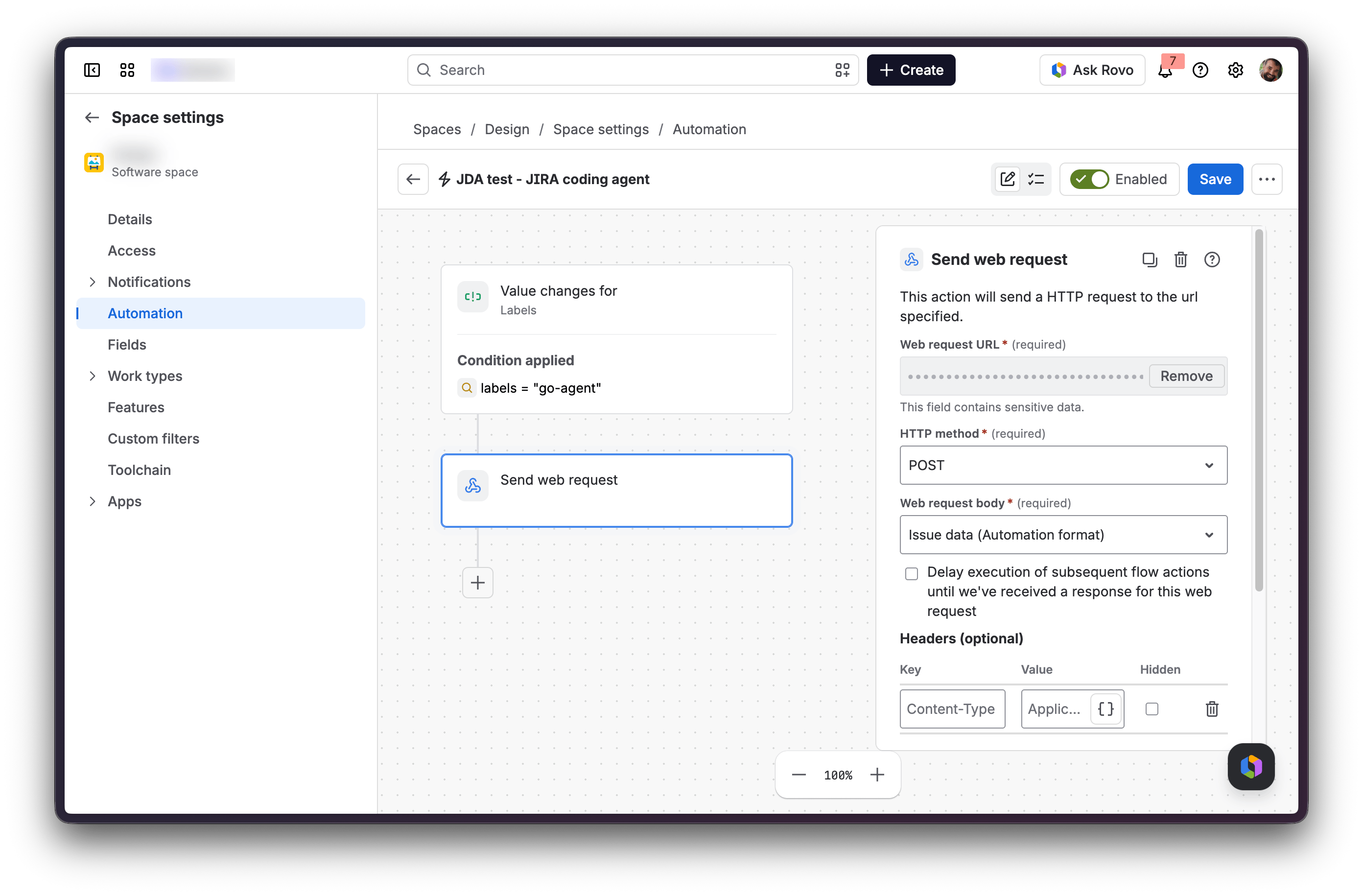
labels = "go-agent"), then add a Send web request action with the URL from the previous step, method POST, and body Issue data (Automation format).go-agent) to a Jira issue to test it: your environment will be cloned to work on the ticket’s request.8
Add an output (optional)
To have the agent post to Slack when it’s done, add a webhook output pointing to a Slack Incoming Webhook URL. See Outputs for the setup steps.